> ## Documentation Index
> Fetch the complete documentation index at: https://docs.monostate.ai/llms.txt
> Use this file to discover all available pages before exploring further.
# Interface Overview
> Understanding the chat interface layout
# Chat Interface Overview
The chat interface provides a simple way to interact with your trained models.
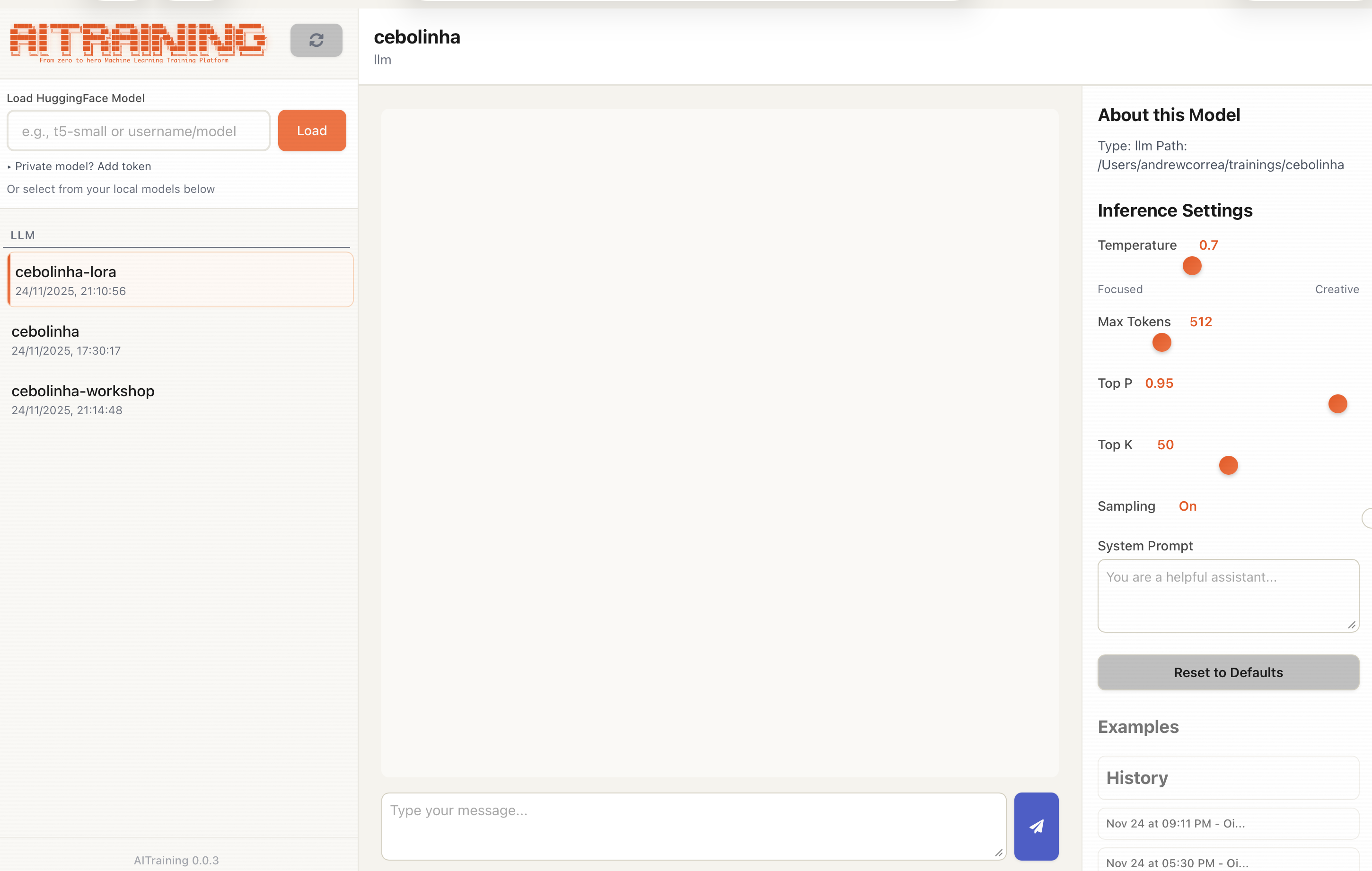 ## Interface Layout
When you open the chat interface, you'll see:
* **Model selector** - Choose which model to chat with
* **Chat area** - Conversation history and input
* **Settings panel** - Adjust generation parameters
## Main Components
### Model Selector
At the top, select your model:
* Enter a local path to your trained model
* Or use a Hugging Face model ID (e.g., `meta-llama/Llama-3.2-1B`)
### Chat Area
The main conversation area:
* **Message input** - Type your messages here
* **Send button** - Submit your message
* **Conversation history** - See previous messages and responses
### Settings Panel
Adjust how the model generates responses:
* **Max tokens** - Maximum response length
* **Temperature** - Creativity vs consistency (0.0 - 2.0)
* **Top-p** - Nucleus sampling threshold
* **Top-k** - Limit token choices
* **Do Sample** - Toggle sampling vs greedy decoding
* **System Prompt** - Set system instructions for the model
## Basic Usage
1. **Load a model** - Enter model path and click Load
2. **Type a message** - Write in the input box
3. **Send** - Press Enter or click Send
4. **Read response** - Model generates a reply
5. **Continue** - Keep the conversation going
## Tips
### For Testing Fine-tuned Models
* Start with prompts similar to your training data
* Test edge cases and unusual inputs
* Compare responses to base model
### For Finding Best Parameters
* Start with temperature 0.7 for balanced output
* Lower temperature (0.3) for more consistent answers
* Higher temperature (1.0+) for creative/varied responses
### For Demos
* Prepare a few good example prompts
* Set parameters before the demo
* Clear conversation history between examples
## Keyboard Shortcuts
| Shortcut | Action |
| ----------- | ------------------- |
| Enter | Send message |
| Shift+Enter | New line in message |
## Next Steps
Load different models
Fine-tune generation settings
## Interface Layout
When you open the chat interface, you'll see:
* **Model selector** - Choose which model to chat with
* **Chat area** - Conversation history and input
* **Settings panel** - Adjust generation parameters
## Main Components
### Model Selector
At the top, select your model:
* Enter a local path to your trained model
* Or use a Hugging Face model ID (e.g., `meta-llama/Llama-3.2-1B`)
### Chat Area
The main conversation area:
* **Message input** - Type your messages here
* **Send button** - Submit your message
* **Conversation history** - See previous messages and responses
### Settings Panel
Adjust how the model generates responses:
* **Max tokens** - Maximum response length
* **Temperature** - Creativity vs consistency (0.0 - 2.0)
* **Top-p** - Nucleus sampling threshold
* **Top-k** - Limit token choices
* **Do Sample** - Toggle sampling vs greedy decoding
* **System Prompt** - Set system instructions for the model
## Basic Usage
1. **Load a model** - Enter model path and click Load
2. **Type a message** - Write in the input box
3. **Send** - Press Enter or click Send
4. **Read response** - Model generates a reply
5. **Continue** - Keep the conversation going
## Tips
### For Testing Fine-tuned Models
* Start with prompts similar to your training data
* Test edge cases and unusual inputs
* Compare responses to base model
### For Finding Best Parameters
* Start with temperature 0.7 for balanced output
* Lower temperature (0.3) for more consistent answers
* Higher temperature (1.0+) for creative/varied responses
### For Demos
* Prepare a few good example prompts
* Set parameters before the demo
* Clear conversation history between examples
## Keyboard Shortcuts
| Shortcut | Action |
| ----------- | ------------------- |
| Enter | Send message |
| Shift+Enter | New line in message |
## Next Steps
Load different models
Fine-tune generation settings